
Mount Any Disc Image Instantly
WinCDEmu turns ISO, CUE, NRG, and MDF files into virtual drives with a single click. No bloatware, no ads — just fast, reliable disc emulation.
- Documents
- ubuntu-24.04-lts.iso 4.7 GB
- project-files.zip 328 MB
- readme.txt 2 KB
What Is WinCDEmu?
A lightweight, open-source disc image mounter that integrates directly into Windows Explorer.
Disc Mounting Made Simple
WinCDEmu is a free, open-source CD/DVD/BD emulator for Windows that lets you mount disc image files as virtual drives. Double-click an ISO, CUE, NRG, or MDS file in Windows Explorer, and WinCDEmu assigns it a drive letter instantly. No menus to navigate, no configuration required. The whole process takes about one second.
Developed by Sysprogs and released under the LGPL license, WinCDEmu has become one of the most recommended disc mounting tools on Reddit and tech forums. Users regularly rate it 9 or 10 out of 10 for ease of use, and it has earned a reputation as the go-to alternative for anyone looking to replace heavier tools like Daemon Tools or Alcohol 120%.
Who Is WinCDEmu For?
If you work with disc images at all, WinCDEmu handles the job without getting in the way. Developers testing software distributed as ISOs, IT administrators deploying system images, gamers mounting disc-based games, or anyone who just downloaded an ISO and wants to see what is inside. The installer is about 1.8 MB, and there is also a portable version at around 667 KB that runs from a USB drive without any installation.
Broad Format Support
WinCDEmu reads ISO, CUE/BIN, NRG (Nero), MDS/MDF (Alcohol 120%), CCD (CloneCD), IMG, VHD, VDI, and WIM files. You can mount as many disc images simultaneously as you need — there is no arbitrary limit on virtual drives. Beyond mounting, the right-click context menu also lets you create ISO images from physical CDs, DVDs, or folders on your hard drive.
WinCDEmu runs on Windows XP through Windows 11, both 32-bit and 64-bit. Download the latest version to get started.
System Requirements
WinCDEmu runs on nearly any Windows machine. The installer weighs just 1.8 MB and the portable build is under 700 KB.
| Component | Minimum | Recommended |
|---|---|---|
| Operating System | Windows XP SP3 (32-bit or 64-bit) | Windows 10 or Windows 11 |
| Processor | Any x86 or x64 CPU (1 GHz+) | Intel or AMD dual-core, 1.5 GHz+ |
| RAM | 256 MB | 1 GB or more |
| Disk Space | 5 MB (installed) / 667 KB (portable) | 10 MB free for temp files |
| Display | 800 x 600 resolution | 1024 x 768 or higher |
| Permissions | Administrator (for driver install) | Administrator for initial setup only |
WinCDEmu has been tested and confirmed working on Windows XP, Vista, 7, 8, 8.1, 10, and 11. The portable version requires no installation at all — just run the executable directly from a USB drive or local folder. Admin rights are only needed once during the initial driver setup.
Key Features
WinCDEmu handles disc image formats that Windows ignores out of the box. Here is what makes it the go-to tool for millions of users.
One-Click ISO Mounting
Double-click any disc image file in Windows Explorer and WinCDEmu mounts it as a virtual drive instantly. No extra steps, no menus to navigate. The mounted drive shows up in File Explorer just like a physical CD or DVD, ready for you to browse and open files. This single feature is the reason most people install WinCDEmu over bulkier alternatives.
Wide Format Support
Handles ISO, CUE/BIN, NRG, MDS/MDF, CCD, IMG, VHD, VDI, and WIM files. If Windows cannot open it natively, WinCDEmu probably can.
Unlimited Virtual Drives
Mount as many disc images as you need at the same time. There is no artificial cap on how many virtual drives you can run simultaneously. Software testers, developers, and power users who juggle multiple ISOs daily rely on this. Each image gets its own drive letter, and you can unmount them individually whenever you are done.
Create ISO Images
Right-click any CD, DVD, or folder in Explorer and choose “Create ISO image” from the context menu. WinCDEmu builds the ISO file for you without needing separate burning software.
Portable Edition
The portable version weighs just 667 KB and runs from a USB drive with zero installation. Perfect for IT technicians who need disc mounting on machines they do not own or manage.
Drag-and-Drop Mounting
Drag an image file onto the WinCDEmu window or system tray icon to mount it. This gives you a second quick-mount method alongside double-clicking in Explorer.
Lightweight Footprint
The full installer is about 1.8 MB. WinCDEmu uses minimal CPU and RAM while running in the background, unlike bloated alternatives that install browser toolbars and background services you never asked for.
Command-Line Interface
Automate disc mounting through batch scripts or PowerShell. The CLI lets you mount, unmount, and manage virtual drives from the command prompt — useful for build pipelines and automated testing setups.
Keyboard Hotkeys
Assign custom hotkeys for mounting and unmounting drives. Power users can bind frequently used actions to key combos and skip the context menu entirely.
RAM Disk Creation
Create temporary RAM disks for ultra-fast read/write operations. Store temp files, compilation output, or scratch data in memory for speeds that mechanical and solid-state drives cannot match.
No Adware or Bloatware
WinCDEmu is open source under the LGPL license. The installer includes nothing beyond the core application. No bundled toolbars, no tracking, no trial-to-paid upsells.
Auto-Eject on Restart
Configure WinCDEmu to automatically unmount all virtual drives when the system restarts. This keeps your drive letters clean and prevents conflicts with other software that expects specific drive letter assignments.
Ready to try WinCDEmu? Download it free and start mounting disc images in seconds.
Download WinCDEmu
Pick the version that fits your setup. The installer adds Explorer integration automatically. The portable build runs without installing anything.
Both versions are hosted on official sources. The installer needs administrator rights during setup.
Source code available on GitHub.
Screenshots
See WinCDEmu in action – from right-click mounting to drive management and settings configuration.
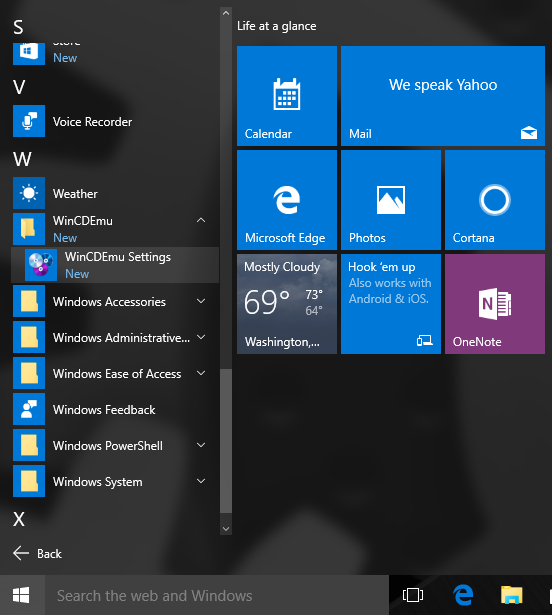
Screenshots from the official WinCDEmu website. Click any image to enlarge.
Getting Started with WinCDEmu
From download to your first mounted image in under five minutes. Here is everything you need to know about installing, configuring, and using WinCDEmu on your Windows PC.
Downloading WinCDEmu
Head to our download section above to grab the latest version of WinCDEmu. You will find two editions available: the standard installer and the portable version. Pick the one that fits your situation.
The standard installer (WinCDEmu-4.1.exe) weighs in at roughly 1.8 MB and takes just a few seconds to download on most connections. It registers a system driver so that ISO files open with a double-click straight from Windows Explorer. This is the version most people should grab.
The portable edition is even smaller at about 667 KB. It runs from any folder or USB drive without a traditional install, though it still needs to load a lightweight driver on first launch. Portable WinCDEmu is useful when you are working on a shared computer or a system where you do not have permission to run a full installer.
Both editions are packaged as a single .exe file. There is no MSI option. WinCDEmu supports 32-bit and 64-bit versions of Windows from XP all the way through Windows 11, so version compatibility should not be a concern on any modern machine.
Installation Walkthrough
Installing WinCDEmu is about as simple as it gets. The whole process takes under a minute, and there are no confusing options, bundled toolbars, or sneaky checkboxes to worry about.
- Run the downloaded file. Double-click
WinCDEmu-4.1.exe. If Windows SmartScreen shows a warning saying “Windows protected your PC,” click More info and then Run anyway. The file is digitally signed by Sysprogs, so it is safe. - Click “Install.” The installer window is a single screen with an Install button and a brief license summary. No custom options, no folder selection, no component picker. Just click Install.
- Approve the driver. Windows will pop up a dialog asking whether you trust driver software from “Sysprogs OUE.” Select Install to approve. This driver is what allows WinCDEmu to create virtual CD/DVD drives on your system.
- Done. The installer closes on its own once everything finishes. No reboot required. WinCDEmu integrates into Windows Explorer immediately.
The installer places files in C:Program Files (x86)WinCDEmu on 64-bit systems. It also registers context menu handlers so that disc image files show the “Select drive letter & mount” option when you right-click them.
/UNATTENDED flag: WinCDEmu-4.1.exe /UNATTENDED. Import the Sysprogs certificate beforehand to skip the driver trust prompt.
Portable edition: Extract the zip and run PortableWinCDEmu.exe. On first launch, it asks to install a lightweight driver (VCdRom.sys) to your system32drivers folder. Click Yes. After that, the portable app window opens and you can start mounting images right away.
Uninstalling: Open Settings > Apps (or Control Panel > Programs) and find WinCDEmu in the list. Click Uninstall. The uninstaller removes the driver, context menu entries, and all program files cleanly.
Initial Setup & Configuration
WinCDEmu works out of the box with no configuration needed. But if you want to fine-tune how it behaves, open WinCDEmu Settings from the Start Menu. The settings window is compact with just a few options.
Drive letter policy is the main setting worth adjusting. You have two choices:
- “Let Windows manage drive letters automatically” — Windows picks the next available letter. Good if you rarely mount more than one image at a time.
- “Prefer drive letters starting with V:” — WinCDEmu assigns letters starting from V:, then W:, X:, and so on. This keeps virtual drives grouped separately from your real drives and avoids conflicts with USB sticks or network shares. Recommended for most users.
Require administrator rights — When checked, mounting an image triggers a UAC prompt. Useful in lab or shared environments where you want to limit who can mount disc images. Leave unchecked for personal use.
Language — WinCDEmu supports multiple UI languages. The change applies immediately to the settings window. The Explorer context menu text updates after you restart Explorer or log out and back in.
There is no first-run wizard or registration screen. WinCDEmu does not collect telemetry, show ads, or phone home. It quietly sits in the background until you need it.
Your First Mounted Image
Let’s walk through mounting an ISO file with WinCDEmu. Say you have downloaded a Linux distribution ISO and want to browse its contents without burning a disc.
Method 1: Double-click (fastest)
- Open the folder where your
.isofile is stored. - Double-click the file. A small dialog pops up showing the drive letter that will be assigned.
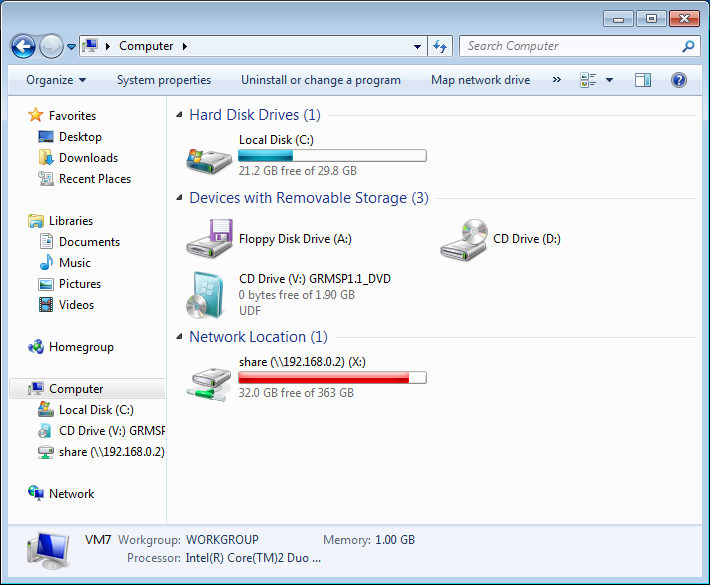
- Click OK or press Enter. The image mounts instantly, and a new virtual drive appears in This PC / My Computer.
- Open the virtual drive to browse files, run installers, or copy what you need.
Method 2: Right-click context menu
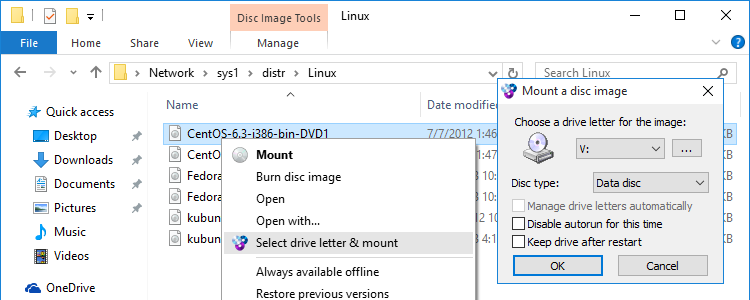
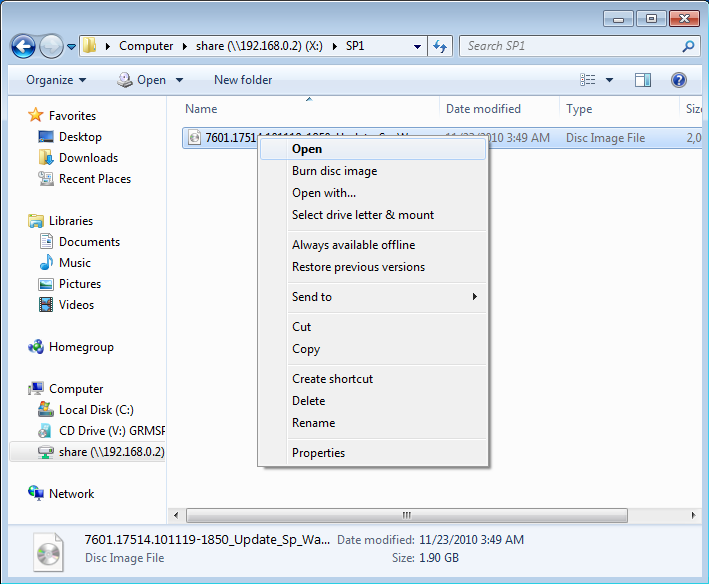
Right-click any supported disc image file (ISO, CUE, NRG, MDS/MDF, CCD, IMG) and select “Select drive letter & mount”. This opens the same dialog where you can pick a specific drive letter before mounting. Handy when you need a particular letter for a script or application.
If you check “Manage drive letters automatically” in the mount dialog, WinCDEmu skips the dialog entirely on future mounts. Double-clicking an image will mount it silently to the next available letter.
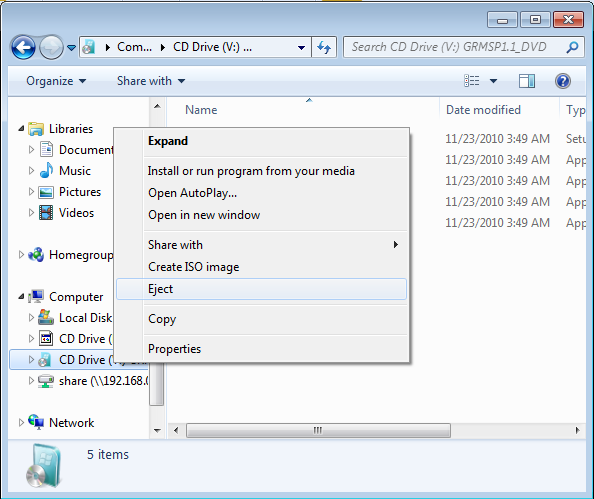
Unmounting a drive: Right-click the virtual drive in This PC and select Eject. The drive disappears immediately. You can also remount the same image by double-clicking it again.
Creating an ISO from a folder: Right-click any folder in Explorer, then select “Build an ISO image”. Choose where to save the output file, and WinCDEmu builds the ISO using its bundled mkisofs engine. This works for backing up folders or creating disc images for virtual machines.
Creating an ISO from a physical disc: Insert a CD or DVD, open This PC, right-click the disc drive, and select “Create ISO image”. WinCDEmu reads the entire disc and saves it as an ISO file wherever you choose.
| Action | How To |
|---|---|
| Mount image | Double-click the image file, or right-click > “Select drive letter & mount” |
| Unmount / eject | Right-click virtual drive in This PC > Eject |
| Create ISO from folder | Right-click folder > “Build an ISO image” |
| Create ISO from disc | Right-click disc drive in This PC > “Create ISO image” |
| Mount via command line | batchmnt image.iso |
| List mounted images (CLI) | batchmnt /list |
| Unmount all (CLI) | batchmnt /unmountall |
Tips, Tricks & Best Practices
Use the command line for automation. WinCDEmu includes batchmnt.exe in its install directory (C:Program Files (x86)WinCDEmu). It is perfect for batch scripts. Run batchmnt image.iso to mount, batchmnt /unmountall to clear everything. Run batchmnt /? to see all available flags.
Mount multiple images at once. Unlike Windows 10/11 built-in ISO mount, WinCDEmu has no limit on virtual drives. You can have ten ISOs mounted simultaneously if you need them. Each gets its own drive letter.
Broader format support than Windows native. Windows can mount plain ISO files natively starting with Windows 8, but it cannot handle CUE/BIN, NRG (Nero), MDS/MDF (Alcohol 120%), CCD (CloneCD), or IMG files. WinCDEmu handles all of these, plus VHD and WIM formats.
Portable on a USB stick. Copy the portable edition to a USB drive and carry it between machines. The driver install only needs to happen once per computer, and it survives reboots.
Getting help. WinCDEmu is a mature, stable project, so issues are rare. If you run into trouble, check the Sysprogs forums or the GitHub repository for known issues. The software has not had a major update since version 4.1, but it continues to work without problems on the latest Windows releases.
Ready to try it? Download WinCDEmu and mount your first disc image in seconds.
Frequently Asked Questions
Answers to the most common questions about WinCDEmu, from installation and safety to troubleshooting and comparisons with other disc mounting tools.
Is WinCDEmu safe to download and install?
Yes, WinCDEmu is safe to download and install when you get it from the official source at wincdemu.sysprogs.org. The software has been available since 2007 and is developed by Sysprogs, a company that also makes professional embedded development tools like VisualGDB.
WinCDEmu version 4.1 has been downloaded millions of times and is listed as trusted software on platforms like Chocolatey (the Windows package manager), VideoHelp, and SourceForge. The installer file is roughly 1.8 MB, which is unusually small for a disc emulator and leaves little room for bundled extras. It installs a kernel-mode driver to create virtual CD/DVD drives, which is why Windows may show a driver installation prompt during setup. This is normal behavior for any virtual drive software.
- The full source code is published on GitHub at github.com/sysprogs/WinCDEmu, so anyone can audit the codebase
- Unlike Daemon Tools or Alcohol 120%, WinCDEmu bundles zero adware, browser toolbars, or third-party offers
- It is licensed under LGPL, a well-known open-source license used by projects like VLC and 7-Zip
- The portable version (roughly 667 KB) requires no installation at all and leaves nothing behind on your system
Pro tip: Avoid downloading WinCDEmu from third-party sites like Softpedia or CNET. Some of these sites wrap the installer in their own downloader that bundles unwanted software. Always use the official Sysprogs download page or Chocolatey (choco install wincdemu).
For the official installer, visit our download section.
Is WinCDEmu free from malware and spyware?
WinCDEmu is completely free from malware, spyware, and any form of tracking. The software contains no telemetry, no usage analytics, and no phone-home functionality of any kind.
Because WinCDEmu is open-source under the LGPL license, its entire codebase is available for public inspection on GitHub. Security researchers and the open-source community have reviewed it over the years. The installer is digitally signed by Sysprogs, which means Windows can verify it has not been tampered with. Virus scanners occasionally flag virtual drive drivers as potentially unwanted programs (PUPs) because the driver technology itself can theoretically be misused, but this is a false positive. Running the official WinCDEmu 4.1 installer through VirusTotal returns clean results from all major antivirus engines.
- No background processes running when you are not actively using it
- No internet connection required at any point during or after installation
- No auto-update mechanism that phones home (you update manually by downloading the newest version)
- No data collection, no registration, no account creation
Pro tip: If your antivirus flags WinCDEmu during installation, add an exception for the installer file and the WinCDEmu installation directory (typically C:Program FilesWinCDEmu). This is a common false positive with virtual drive software.
Check our features overview to see everything WinCDEmu does and nothing more.
Where is the official safe download for WinCDEmu?
The official and safest download for WinCDEmu is from the developer’s website at wincdemu.sysprogs.org/download/. This is the only source guaranteed to provide the unmodified, clean installer.
WinCDEmu 4.1 is available in two versions from the official site: the standard installer (about 1.8 MB) and the portable version (about 667 KB). The standard installer adds Windows Explorer integration automatically, while the portable version can run from a USB drive without installing anything. Both versions support all the same disc image formats including ISO, CUE/BIN, NRG, MDS/MDF, CCD, and IMG files.
- Official download: wincdemu.sysprogs.org/download/
- Chocolatey package manager: run
choco install wincdemuin an elevated command prompt - GitHub releases: github.com/sysprogs/WinCDEmu for source code and release builds
Pro tip: If you need WinCDEmu on a machine without internet access, download the portable version to a USB drive from another computer. The portable .exe file is self-contained and works immediately without installation or driver setup for basic mounting tasks.
You can also grab WinCDEmu directly from our download section, which links to the official source.
Does WinCDEmu work on Windows 11?
Yes, WinCDEmu 4.1 works on Windows 11 for most users, though it is not officially listed as supported. The developer’s website officially lists compatibility from Windows XP through Windows 10, but community reports confirm it runs on Windows 11 (both 22H2 and 23H2) on standard x86-64 hardware without issues.
There is one significant exception: users running Windows 11 on ARM-based devices like the Surface Pro 11 have reported driver installation error 0x80070103. This happens because WinCDEmu’s kernel driver was compiled for x86/x64 architectures only and does not have an ARM64 build. For ARM Windows 11 users, the built-in Windows ISO mounting feature (right-click any ISO file and select “Mount”) is the best alternative, since it handles ISO files natively without third-party software.
- Windows 11 x64 (Intel/AMD): works reliably with both installer and portable versions
- Windows 11 ARM64 (Snapdragon/Qualcomm): driver install fails with error 0x80070103
- Windows 10 and earlier (XP, Vista, 7, 8, 8.1): fully supported and tested
- Both 32-bit and 64-bit Windows versions are supported on x86 platforms
Pro tip: On Windows 10 and 11, the operating system can mount plain ISO files natively by double-clicking them. WinCDEmu remains valuable if you work with non-ISO formats like NRG (Nero), MDS/MDF (Alcohol 120%), CUE/BIN, or CCD (CloneCD) that Windows cannot open on its own.
Check our system requirements for detailed hardware and OS specifications.
What are the minimum system requirements for WinCDEmu?
WinCDEmu has extremely modest system requirements. Any Windows PC made in the last 15 years can run it without trouble. The software itself uses less than 5 MB of disk space and negligible RAM when idle.
The standard installer requires about 1.8 MB of disk space, and the portable version needs just 667 KB. WinCDEmu does not run a persistent background service. It activates only when you mount a disc image and uses a small kernel driver (BazisVirtualCDBus) to create the virtual drive. Memory usage during active mounting is typically under 10 MB, even with multiple images mounted simultaneously. The software supports unlimited virtual drives, so you can mount as many disc images as your drive letters allow (up to 26 minus your existing drives).
- Operating System: Windows XP SP2 or later (32-bit or 64-bit), through Windows 10/11
- Disk Space: Less than 5 MB for full installation
- RAM: No additional RAM required beyond what Windows itself needs
- CPU: Any x86 or x64 processor
- Admin rights: Required for installation (driver install needs elevated privileges)
Pro tip: If you cannot get admin rights on your machine, use the portable version instead. It can mount images without installing a driver by using a different (slower) mounting method, though some features like context menu integration will not be available.
See the full breakdown on our system requirements page.
Does WinCDEmu work on macOS or Linux?
No, WinCDEmu is a Windows-only application. It relies on a Windows kernel-mode driver to create virtual CD/DVD drives, which makes it fundamentally incompatible with macOS and Linux.
Both macOS and Linux have built-in disc image mounting capabilities that make third-party tools unnecessary. On macOS, you can double-click any ISO or DMG file and it mounts automatically through the DiskImageMounter utility. On Linux, most desktop environments (GNOME, KDE, XFCE) support mounting ISO files through the file manager, and the command line offers the mount -o loop command for mounting any ISO image to a directory.
- macOS: Use the built-in DiskImageMounter (double-click the ISO) or run
hdiutil attach image.isoin Terminal - Linux: Right-click the ISO in your file manager, or use
sudo mount -o loop image.iso /mnt/disc - Windows alternative: Windows 10 and 11 can mount plain ISO files natively, but WinCDEmu adds support for CUE, NRG, MDS, CCD, and IMG formats
Pro tip: If you need to work with NRG or MDS/MDF files on macOS or Linux, convert them to ISO first using a tool like AcetoneISO (Linux) or an online converter, then mount them with the built-in OS tools.
For Windows users, check our getting started guide for a quick walkthrough of WinCDEmu setup.
Is WinCDEmu completely free to use?
Yes, WinCDEmu is completely free for personal and commercial use. There is no paid version, no premium tier, and no feature gating. Every feature is available to every user at no cost.
WinCDEmu is released under the GNU Lesser General Public License (LGPL), which is one of the most permissive open-source licenses available. This means you can use it in business environments, schools, government offices, and at home without paying anything or obtaining a special license. The LGPL license also guarantees that WinCDEmu will always remain free, since any derivative work must also be released under the same license terms. Companies that want to integrate WinCDEmu’s virtual drive technology into their own products can obtain a separate commercial license from Sysprogs, but this does not affect regular users in any way.
- No ads, no nag screens, no trial periods, no watermarks
- Identical features in both the installer and portable versions
- No registration or account required to download or use
- Unlimited virtual drives with no artificial caps
- Full format support (ISO, CUE, NRG, MDS, CCD, IMG, VHD) in the free version
Pro tip: Unlike Daemon Tools (which has a free “Lite” version with ads and a paid “Pro” version), WinCDEmu gives you everything upfront. If you see a site offering “WinCDEmu Pro” or a paid version, it is not legitimate.
Grab WinCDEmu at no cost from our download section.
Can I use WinCDEmu in a business or enterprise environment?
Yes, WinCDEmu can be used freely in business and enterprise environments under its LGPL license. No special commercial license is needed for simply using the software.
For IT administrators deploying WinCDEmu across multiple workstations, the software supports silent installation via the command line. You can run the installer with the /SILENT flag to skip the GUI wizard, which makes it easy to deploy through SCCM, PDQ Deploy, or Group Policy. The Chocolatey package (choco install wincdemu -y) is another option for automated deployment. WinCDEmu does not phone home, does not require activation, and does not need internet access, so it works fine on air-gapped networks.
- Silent install:
WinCDEmu-4.1.exe /SILENT - Chocolatey deployment:
choco install wincdemu -y - No per-seat licensing, no volume discounts to negotiate, no license server to maintain
- The portable version can be distributed on shared network drives without any installation
Pro tip: The US Department of Veterans Affairs has evaluated WinCDEmu in their Technical Reference Model (TRM), which shows it is taken seriously enough for government use. For enterprise deployment documentation, check the Sysprogs forums at sysprogs.com/w/forums/ where other admins share their deployment scripts.
See our getting started guide for installation instructions including silent install options.
How do I download and install WinCDEmu step by step?
Installing WinCDEmu takes about 30 seconds and requires no configuration. Download the 1.8 MB installer, run it, and you are ready to mount disc images immediately.
WinCDEmu 4.1 uses a straightforward installer with no confusing options or bundled offers. During installation, it adds a kernel-mode driver called BazisVirtualCDBus that handles the virtual drive creation. Windows may show a driver verification dialog asking you to trust the Sysprogs certificate. This is normal and required for any virtual drive software to function.
- Download WinCDEmu 4.1 from our download section
- Double-click the downloaded
WinCDEmu-4.1.exefile (about 1.8 MB) - If Windows SmartScreen appears, click “More info” then “Run anyway” (this happens because the installer modifies system drivers)
- Click “Install” on the WinCDEmu setup dialog
- Accept the driver installation prompt from Windows Security
- Installation completes in a few seconds with no restart required
After installation, WinCDEmu integrates directly into Windows Explorer. Double-click any ISO, CUE, NRG, or MDS file and it will mount automatically as a virtual drive. Right-click a disc image file for additional options like choosing a specific drive letter.
Pro tip: If you prefer not to install anything, download the portable version instead. Extract it to any folder or USB drive and run PortableWinCDEmu.exe directly. The portable version is only 667 KB.
For a detailed walkthrough with screenshots, see our getting started guide.
WinCDEmu portable vs installer – which should I choose?
Choose the installer version if you want automatic Explorer integration and one-click mounting. Choose the portable version if you need WinCDEmu on shared computers, USB drives, or machines where you lack admin rights.
The installer version (1.8 MB) adds a kernel driver that lets you double-click any supported disc image to mount it instantly. It also adds right-click context menu options for mounting and creating ISO files. The portable version (667 KB) runs from any folder without installation, but you need to open the portable app first and then select the image file to mount through its interface. The portable version installs a temporary driver each time you run it, which gets removed when you exit.
- Installer version: One-click mounting, context menu integration, auto-starts with Windows Explorer, persistent driver, ideal for your main PC
- Portable version: No installation needed, runs from USB, leaves no traces on the system, slightly less convenient day-to-day, ideal for tech support or shared machines
- Both versions support the same formats: ISO, CUE/BIN, NRG, MDS/MDF, CCD, IMG
- Both versions can mount unlimited virtual drives simultaneously
Pro tip: You can keep the portable version on a USB drive alongside your disc images. That way, you always have both the tool and the files ready to go on any Windows computer you plug into, without needing admin access or leaving traces behind.
Download either version from our download section.
How to fix WinCDEmu not working, crashing, or mounted drives not showing up?
The most common cause of WinCDEmu crashes and invisible mounted drives is rapid mount/unmount cycling or a conflicting CDROM filter driver from other disc software. A clean reinstall fixes the issue in most cases.
Users on the Sysprogs forums have reported that WinCDEmu can crash after mounting and unmounting more than three or four images in quick succession. When this happens, the drive sound plays (indicating the image mounted) but no drive letter appears in Explorer. This is a known edge case in version 4.1. Another common culprit is the GearASPIWdm driver, which is installed by software like iTunes and QuickTime and can interfere with WinCDEmu’s virtual CDROM bus.
- Uninstall WinCDEmu from Control Panel or Settings > Apps
- Restart your computer to clear any leftover driver state
- Check Device Manager > CDROM devices for any unknown or error-flagged entries and remove them
- Search your registry for “GearASPIWdm” and remove it if present (this driver from Gear Software conflicts with virtual drives)
- Reinstall WinCDEmu from the official installer, running it as administrator
- Try mounting a single ISO file to confirm the fix worked
Pro tip: If crashes persist, try the portable version. It installs and removes its driver each session, which avoids persistent driver conflicts. You can run it alongside the installed version to test whether the issue is driver-related or file-related.
If the problem started after a Windows update, see the Windows update troubleshooting question below. For a fresh install, visit our download section.
WinCDEmu stopped working after a Windows update – how to fix?
Windows updates occasionally break third-party kernel drivers, including WinCDEmu’s virtual drive driver. The fix is to uninstall and reinstall WinCDEmu so the driver gets re-registered with the updated Windows kernel.
This issue is more common on Windows 10 and 11 where major feature updates (like 22H2 to 23H2) replace core system files. WinCDEmu 4.1 was last updated in late 2017, so its driver was compiled against an older Windows Driver Kit. While the driver still works on modern Windows, a major update can sometimes invalidate the driver signature cache or change the CDROM subsystem in ways that break existing drivers. Users on the Microsoft Q&A forums and Reddit have reported driver error 0x80070103 appearing in Windows Update after installing WinCDEmu, though this error relates to Windows trying to update the driver through Windows Update rather than WinCDEmu malfunctioning.
- Open Settings > Apps and uninstall WinCDEmu
- Restart your PC
- Download a fresh copy of WinCDEmu 4.1 from our download section
- Right-click the installer and select “Run as administrator”
- If Windows Update shows error 0x80070103 related to WinCDEmu, you can safely hide that update (it is trying to update a driver that does not need updating)
Pro tip: After reinstalling, open Windows Update > Advanced options > Optional updates. If you see a “WinCDEmu” or “Sysprogs” driver listed there, do not install it through Windows Update. The driver that ships with the WinCDEmu installer is the correct one. Installing a mismatched driver through Windows Update causes the 0x80070103 error loop.
Check our system requirements to confirm your Windows version is compatible.
Why is WinCDEmu not appearing in the right-click context menu?
If WinCDEmu is not showing in your right-click context menu after installation, the most likely cause is a failed driver registration or a conflict with Windows 11’s new context menu system.
On Windows 11, Microsoft changed the right-click menu to a simplified version that hides many third-party entries behind “Show more options.” WinCDEmu’s context menu entries (“Select drive letter & mount” and “Create ISO image”) appear in the classic full context menu. On Windows 10 and earlier, the entries should appear directly. If they do not show up at all, the shell extension DLL may not have registered properly during installation.
- On Windows 11: right-click a disc image file, then click “Show more options” at the bottom of the menu to see WinCDEmu entries
- If still missing, open an elevated Command Prompt and run:
regsvr32 "C:Program FilesWinCDEmuWinCDEmuContextMenu.dll" - Restart Windows Explorer: open Task Manager, find “Windows Explorer” in the Processes tab, right-click it, and select “Restart”
- If nothing works, uninstall and reinstall WinCDEmu with administrator privileges
Pro tip: On Windows 11, you can restore the classic full context menu system-wide by running reg add "HKCUSoftwareClassesCLSID{86ca1aa0-34aa-4e8b-a509-50c905bae2a2}InprocServer32" /f /ve in an elevated command prompt, then restarting Explorer. This makes WinCDEmu’s options visible on the first right-click again.
For more setup details, see our getting started guide.
How do I update WinCDEmu to the latest version?
WinCDEmu does not have an auto-update feature. To update, download the latest version from the official website and install it over your existing installation. No uninstall is needed first.
The current stable version is WinCDEmu 4.1, which was released in late 2017. Despite its age, version 4.1 remains fully functional on modern Windows systems including Windows 10 and 11. The software is considered mature and feature-complete by its developer, Sysprogs. Updates have been infrequent because there is little that needs changing. The core function of mounting disc images works reliably, and the supported formats (ISO, CUE, NRG, MDS, CCD, IMG, VHD) cover virtually every disc image type in common use.
- Check your current version by right-clicking any mounted virtual drive and selecting “WinCDEmu settings” from the context menu
- Visit wincdemu.sysprogs.org/download/ to see the latest available version
- Download the new installer and run it. It will automatically replace the old version
- If using Chocolatey, run
choco upgrade wincdemuto pull the latest package
Pro tip: Since WinCDEmu has no auto-updater, bookmark the official download page or set up a Chocolatey scheduled task if you want to be notified about updates automatically. In practice, version 4.1 has been stable for years and there is no urgent need to check frequently.
Download the current version from our download section.
WinCDEmu vs Daemon Tools – which disc mounting tool is better?
WinCDEmu is better for users who want a simple, free, ad-free disc image mounter. Daemon Tools is better for power users who need advanced features like disc burning, RAM disks, or bootable USB creation.
The biggest practical difference is the business model. WinCDEmu is fully open-source and free with zero ads or upsells. Daemon Tools has a free “Lite” version that displays advertisements and limits you to basic mounting, while the Pro version (around $30-40) unlocks advanced features. Daemon Tools Lite has been criticized on Reddit and review sites for bundling third-party offers during installation, something WinCDEmu never does. On the other hand, Daemon Tools supports more advanced image formats, can emulate copy-protected discs, offers virtual SCSI drives, and includes disc burning capabilities.
- WinCDEmu: 1.8 MB installer, open-source, zero ads, supports ISO/CUE/NRG/MDS/CCD/IMG, unlimited virtual drives, context menu integration, create ISO from folders
- Daemon Tools Lite (free): Larger installer (~30 MB), closed-source, shows ads, supports similar formats plus advanced emulation, limited to 4 virtual drives in free version
- Daemon Tools Pro (paid): All formats, disc burning, RAM disks, bootable USB, SCSI emulation, VHD mounting, command-line interface
- WinCDEmu advantage: Uses about 5 MB installed vs Daemon Tools using 50+ MB; no background service running constantly
Pro tip: If you are switching from Daemon Tools to WinCDEmu, uninstall Daemon Tools first and restart before installing WinCDEmu. The SPTD driver that Daemon Tools installs can conflict with WinCDEmu’s virtual CDROM bus driver.
Compare features side by side on our features page.
WinCDEmu vs Virtual CloneDrive – which should I pick?
Both are excellent free choices. WinCDEmu supports more disc image formats and is open-source. Virtual CloneDrive has a slightly more polished interface and supports up to 15 virtual drives with a counter, but handles fewer file types.
Virtual CloneDrive, made by Elaborate Bytes (the CloneBD and CloneDVD developers), supports ISO, BIN, CCD, UDF, and DVD formats. WinCDEmu covers all of those plus NRG (Nero images), MDS/MDF (Alcohol 120% images), and CUE files. This makes WinCDEmu the better choice if you work with disc images from different burning software. Virtual CloneDrive has a maximum of 15 simultaneous virtual drives, while WinCDEmu supports unlimited drives. Both are completely free with no ads.
- Format support: WinCDEmu wins (ISO, CUE, NRG, MDS, CCD, IMG vs ISO, BIN, CCD, UDF, DVD)
- Max virtual drives: WinCDEmu wins (unlimited vs 15)
- Create ISO: WinCDEmu wins (right-click folder to create ISO; Virtual CloneDrive cannot create images)
- Open source: WinCDEmu wins (LGPL on GitHub vs closed-source freeware)
- File size: WinCDEmu wins (1.8 MB vs ~5 MB)
- Both: Free, no ads, no bloatware, Explorer integration, Windows XP through 10/11 support
Pro tip: If you only work with standard ISO files and never touch NRG or MDS formats, both tools are nearly identical in daily use. Pick whichever one you install first and stick with it.
See what makes WinCDEmu stand out on our features page.
How do I use WinCDEmu from the command line?
WinCDEmu includes a command-line tool called batchmnt.exe that lets you mount and unmount disc images from batch scripts, scheduled tasks, or the command prompt without any GUI interaction.
The batch mount utility is installed alongside WinCDEmu in the Program Files directory. It accepts the disc image file path as its primary argument and supports optional parameters for drive letter selection and unmounting. This is especially useful for IT administrators who need to automate disc image mounting across multiple workstations, or for game launcher scripts that need to mount disc images before starting a program.
- Mount an image to the next available drive:
"C:Program FilesWinCDEmubatchmnt.exe" "D:Imagesgame.iso" - Mount to a specific drive letter:
"C:Program FilesWinCDEmubatchmnt.exe" "D:Imagesgame.iso" Z: - Unmount a drive:
"C:Program FilesWinCDEmubatchmnt.exe" /unmount Z: - Unmount all virtual drives:
"C:Program FilesWinCDEmubatchmnt.exe" /unmountall
Pro tip: You can create a batch file that mounts multiple images at once. For example, a game that ships on 3 CDs can be mounted to E:, F:, and G: in a single script. Add batchmnt.exe /unmountall at the end to clean up after installation finishes. The /wait flag pauses the script until mounting completes, which is useful in chained commands.
Learn more about automation in our getting started guide.
Can I create ISO images from CDs, DVDs, or folders with WinCDEmu?
Yes, WinCDEmu can create ISO images from physical CDs/DVDs and from regular folders on your hard drive. This feature is built into the Windows Explorer context menu with no additional tools required.
To create an ISO from a folder, right-click the folder in Windows Explorer and select “Build an ISO image.” WinCDEmu will package the entire folder contents into a standard ISO 9660 image file. For physical discs, insert the CD or DVD, right-click the disc drive in “This PC,” and select the same option. The resulting ISO file is a standard format readable by any operating system or disc burning software. File size is limited only by your available disk space and the FAT32/NTFS limitations of your drive.
- From a folder: Right-click any folder > “Build an ISO image” > choose save location > click Save
- From a CD/DVD: Insert disc > open “This PC” > right-click the disc drive > “Build an ISO image” > save
- From command line: Use
mkisofssyntax with WinCDEmu’s built-in ISO creation engine
The ISO creation process runs at disk read speed for physical media and at storage write speed for folders. A typical 700 MB CD image takes under 2 minutes on modern hardware. The output ISO follows the ISO 9660 standard with Joliet extensions for long filenames.
Pro tip: When creating ISOs from folders, keep the total path length under 240 characters to avoid issues with the ISO 9660 specification. If you have deeply nested folder structures, consider flattening them before building the image.
See all WinCDEmu capabilities on our features page.
How do I completely uninstall WinCDEmu from my computer?
WinCDEmu can be fully uninstalled through Windows Settings or Control Panel. The uninstaller removes the application files, the virtual drive driver, and the Explorer context menu entries.
Unlike some disc emulation software that leaves driver remnants behind (Daemon Tools is known for leaving its SPTD driver), WinCDEmu performs a clean removal. The BazisVirtualCDBus driver is deregistered and deleted, the context menu shell extension is unregistered, and all program files are removed from the installation directory. No registry keys are orphaned. For the portable version, no uninstallation is needed. Just delete the portable executable and its folder.
- Unmount all virtual drives first (right-click each virtual drive in Explorer and select “Eject”)
- Open Windows Settings > Apps > Installed Apps (or Control Panel > Programs and Features on older Windows)
- Find “WinCDEmu” in the list and click Uninstall
- Confirm the uninstallation when prompted
- Restart your computer to ensure the kernel driver is fully removed
Pro tip: If the standard uninstaller fails or leaves traces, you can manually remove WinCDEmu by deleting the folder at C:Program FilesWinCDEmu, then opening Device Manager, expanding “DVD/CD-ROM drives,” and removing any “BazisVirtualCDBus” entries. Follow up by running pnputil /delete-driver oem*.inf for the Sysprogs driver package.
If you want to reinstall fresh, grab the latest version from our download section.
Still have questions? Check our Getting Started guide or visit the download section to try WinCDEmu yourself.